
So, you’ve just bought your first Luxe and Form Sticky Note printable and need a bit of a walkthrough on how to print them out onto sticky notes? You came to the right place! Here’s a step-by-step guide using the Weekly Tracker Sticky Note as an example.
- After purchasing your sticky notes, you will receive an email with your printable file download links at the bottom of it. Upon receipt, locate the file titled “Sticky Note Base Template.” This is the base template that will help you space out your sticky notes correctly for printing.

- Print out the base template, selecting “Actual Size” as the sizing option.
- TIP: Take note of which side the printer printed on and what end of the paper printed out first. (You will need to feed this back into the printer later the same direction.)
- TIP: I’ve seen the best, most consistent results printing with Adobe Acrobat.

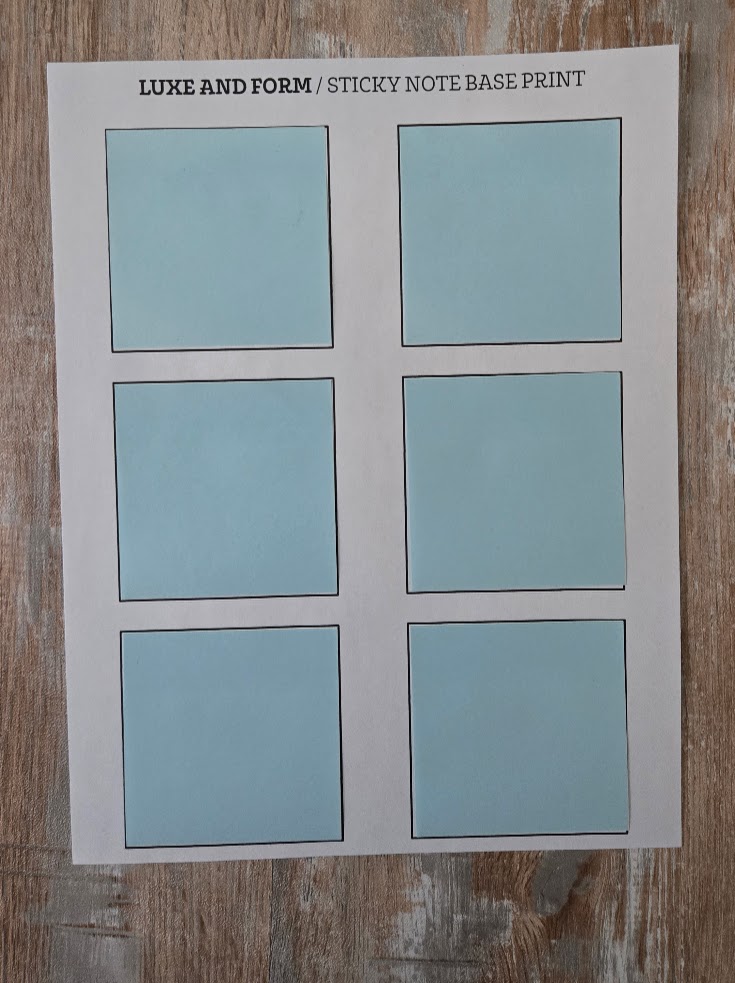
- Once printed, stick your blank sticky notes onto the squares on the template (pictured below).
- Feed the base template with sticky notes pasted onto it back into your printer the same direction as it printed out in step two.
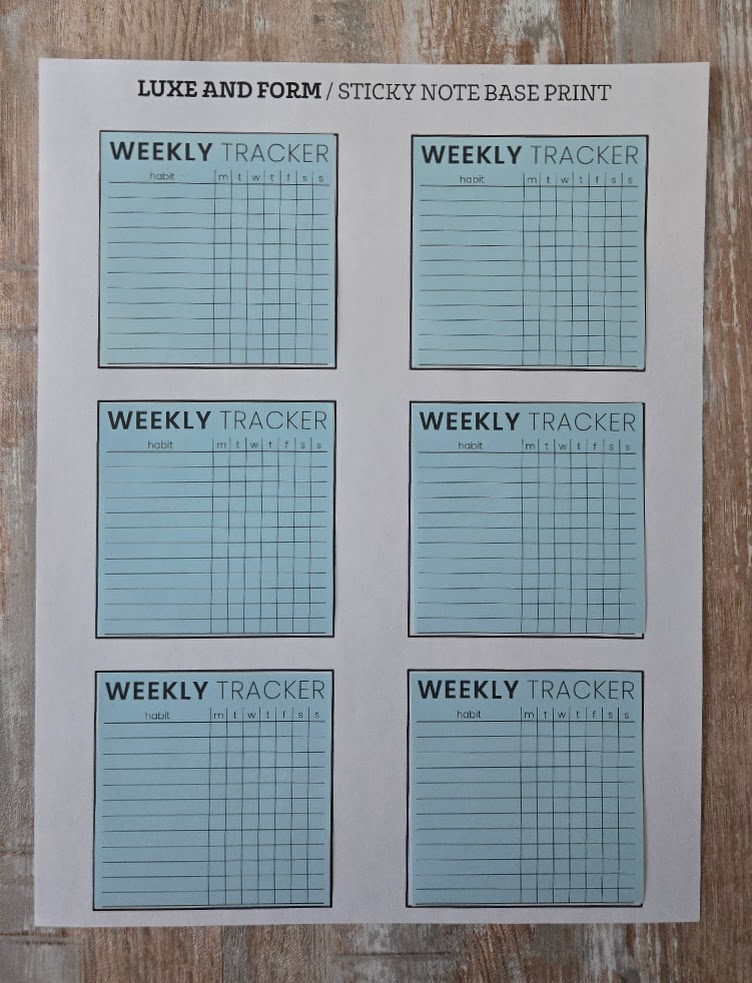
- Now, open the PDF file that ends with “(for Printing onto Sticky Notes)” and print that file, ensuring you select “Actual Size” as the size.
Voila! You now have some functional new stickies to use!
P.S. If you don’t want to print onto sticky notes, a third version of the stickies with crop marks is provided with your order. You can print this version onto normal letter-sized paper and cut the sticky notes along the cut lines using scissors or a paper cutter.